If you're reading this, there's a good chance you already have what you need: a folder of product photos sitting there mostly unused beyond a listing page. What usually never happens is turning those photos into a video, because that used to mean booking a shoot, hiring an editor, or learning your way around a prompt box that assumes you already know camera and lighting language.
Here's the short version: the best tool for a product video in 2026 isn't about which AI model you pick. It's about whether the workflow can start from photos you already have and get you to a finished film without a reshoot. On Chromatic, that workflow is a Skill called /product-video-skill. You drop your product photos onto the canvas, tell it what shots you're picturing, and it builds a 10 to 15 second film at up to 4K, in whichever aspect ratio you need.
Here's the whole thing in under four minutes, a real run on a real brief. The breakdown and examples are below.
What actually makes a product video tool good in 2026?
A handful of things separate a tool that's actually useful from one that's just a nice demo: it works from the photos you already have without warping your product into something unrecognizable, it doesn't ask you to reshoot anything, it gets you a result in minutes instead of weeks, and what comes out the other end is ready to use, not a rough draft you still have to edit into shape.
There's one more thing worth calling out: most AI video tools hand you a blank prompt box and expect you to already know how to talk to it, camera moves, lighting terms, which model is good at what. A product video Skill should handle that part for you, so the thing you bring is the direction, not the technical vocabulary.
| What's worth checking | What a good answer looks like |
|---|---|
| Reference handling | You upload your own product photos and the output still looks like your product |
| Reshoot requirement | None. The photos you already have are the whole input |
| Turnaround | Minutes, watched live, not a queue you check back on tomorrow |
| Output readiness | Sized and paced for where it's actually going, a listing, an ad, a social post |
| Skill required | None. You describe the shots in plain language and the tool handles the rest |
What do real outputs from this workflow look like?
This Skill works across product categories, not just cooking oil. The same workflow has already produced finished films for espresso, skincare, spirits, and jewellery, because it reads what the product is and what category it belongs to before it writes a single line of the prompt.
On the Skills page, the Product Commercials Skill has its own gallery. A few one-shot examples from it:
It shows up well beyond food and drink too. Jewellery brands use the same workflow for catalogue and product-page video, turning earrings and rings into short, detailed clips instead of static shots. None of this is one-off demos put together specially. It's the same /product-video-skill run, pointed at a different photo library each time.
Which AI model does the work, and why does that matter?
You don't need to decide that yourself. The Skill looks at what the product is and what industry it belongs to, then sends the render to Seedance, Kling, or Grok, depending on the quality you want and the credits you'd like to spend. Each run comes back a little different because the story it builds around the product changes every time too.
| Model the Skill can route to | Where it tends to shine on product work |
|---|---|
| Seedance | Holds color, label text, and packaging shape steady across every frame; the usual pick for most product runs |
| Kling | Strong element lock for things that can't be allowed to drift, jewellery, cosmetics, anything small and detailed |
| MiniMax H3 / Grok | A gentler option on credits when you'd like another full pass without spending as much per render |
How do you turn product photos into a video, step by step?
Here's exactly what happens on the canvas, from the first photo to the finished film. You upload your photos, describe the shots you're imagining, and run the Product Video Skill. Everything after that, the model it picks, the prompt it writes, which photos it uses, happens in front of you, so you can weigh in if something looks off.
This is Graza, a cooking oil brand with strong product photography already in hand.
Start with photography you already own
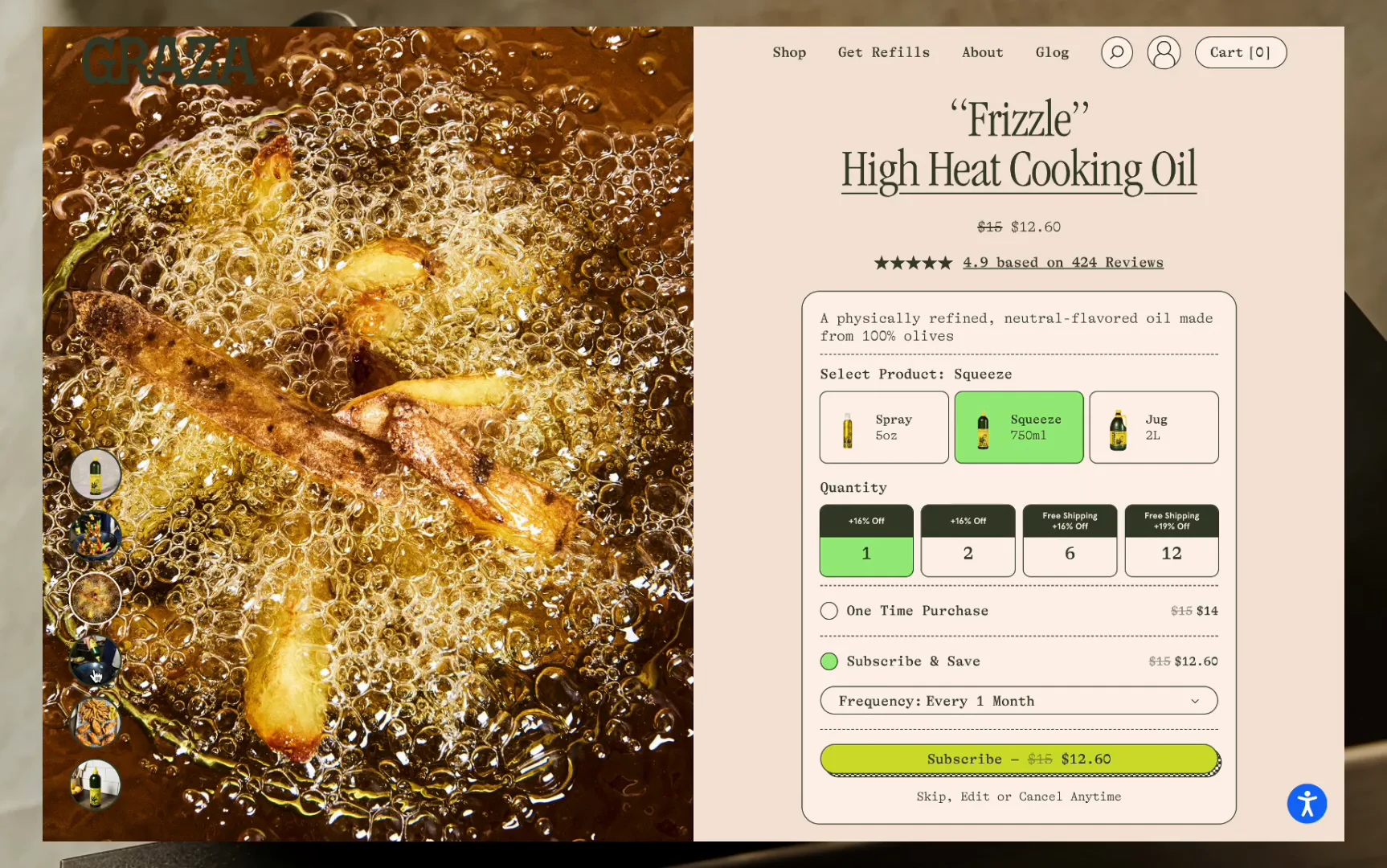
This works best when there's decent photography to begin with, and Graza has that: a clean bottle shot, a cooking shot, a couple of detail crops. Nothing here gets invented from scratch. The goal is simply to turn photos that already exist into motion.
Upload the images to the canvas
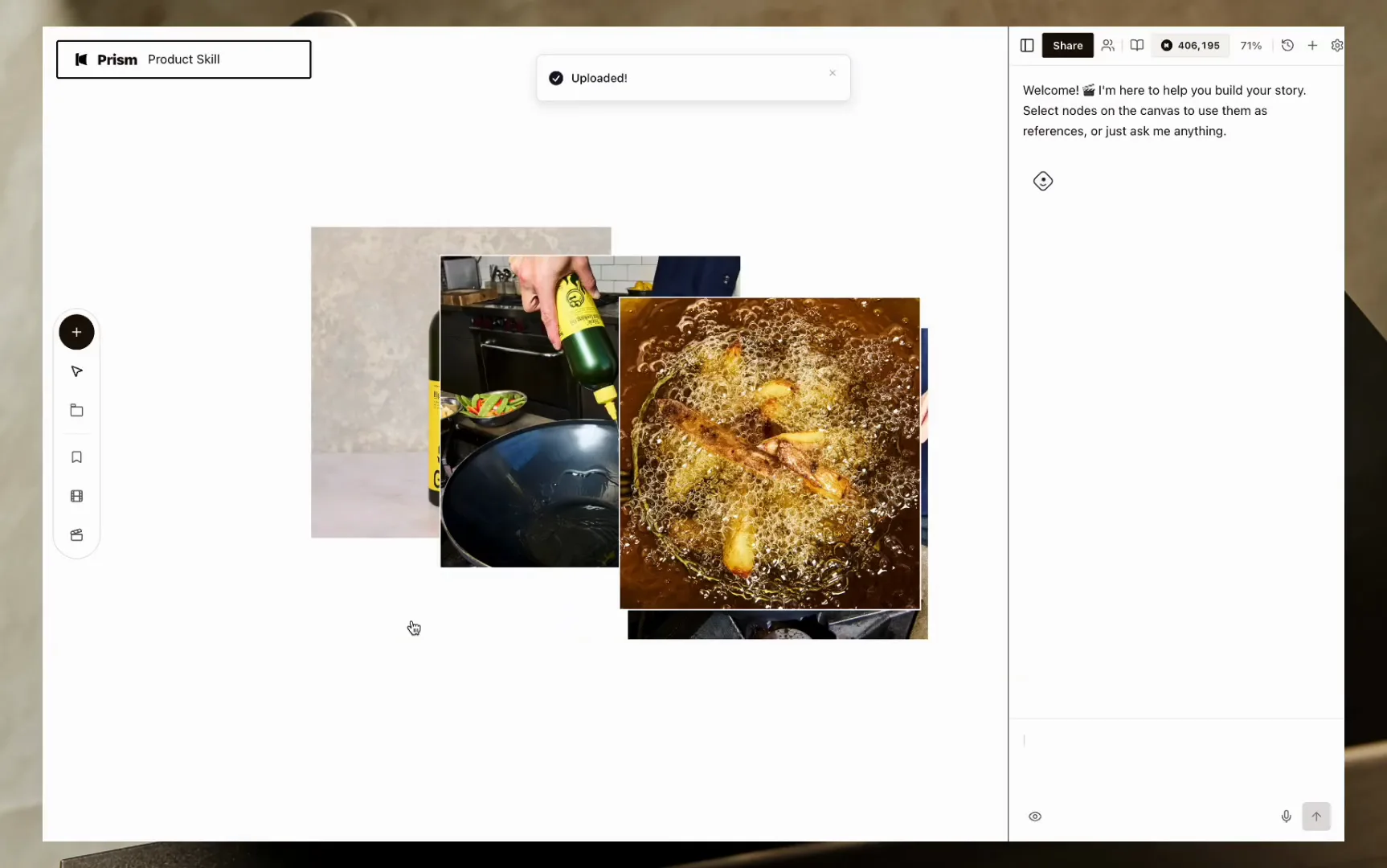
Drag the photos onto the canvas and they land as individual nodes you can move around freely, a bit like arranging reference tiles on a mood board.
Tidy them into a row
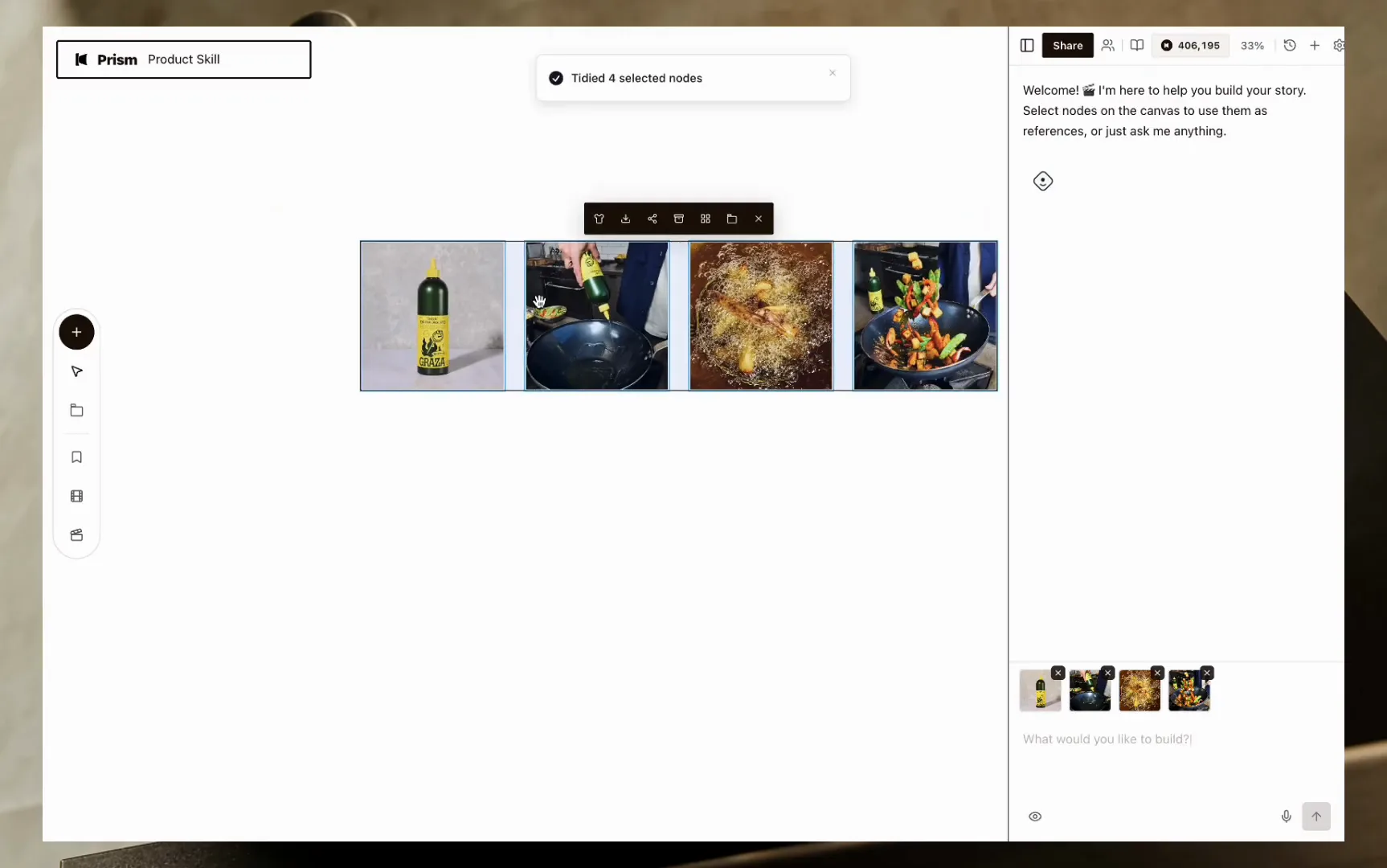
A small, optional touch: drag-select all four images, then use the align option in the floating toolbar, and they snap neatly into a row. It's cosmetic, but it makes the next few steps easier to follow.
Say what you want, in plain language
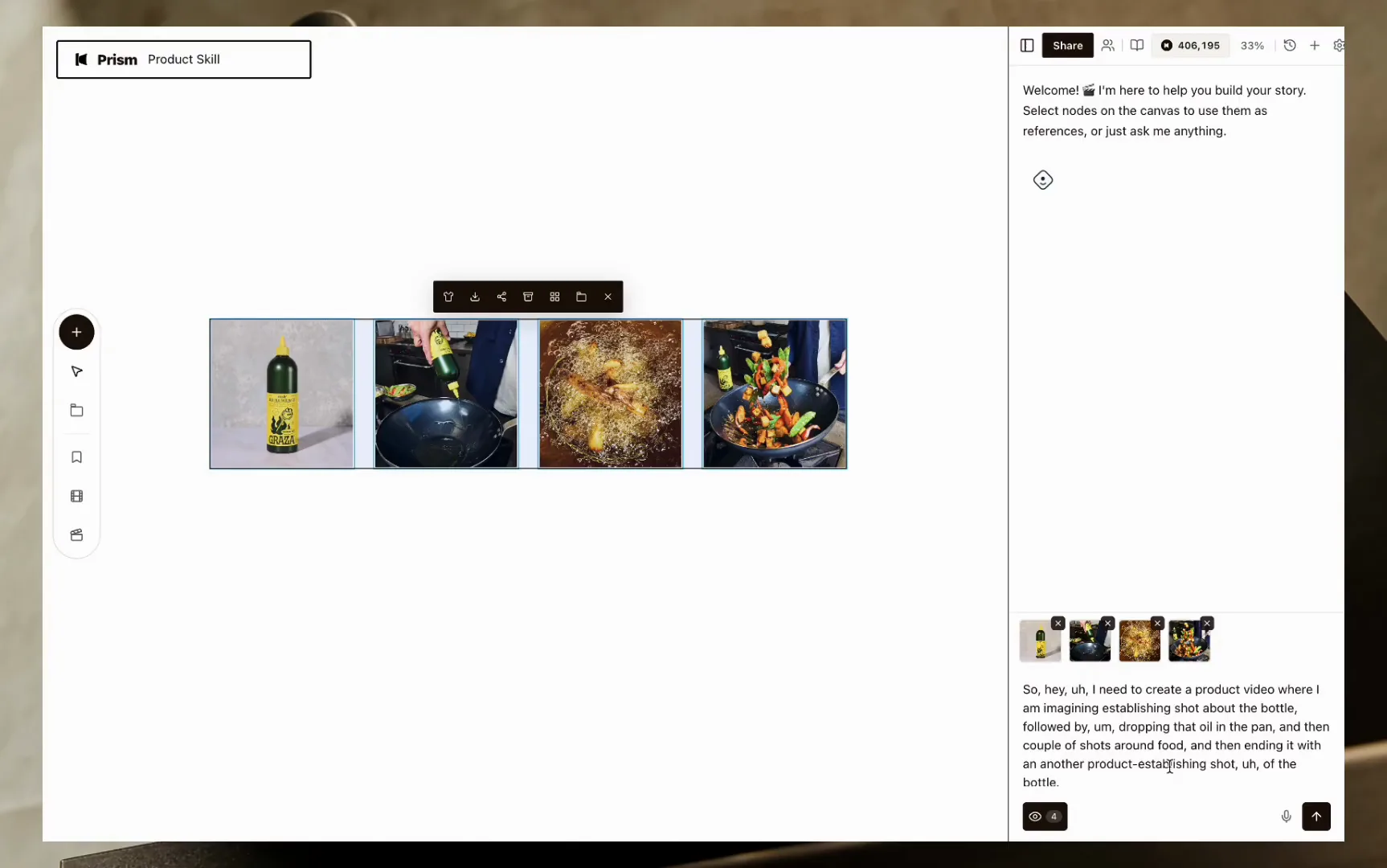
Turn on dictation and talk through the film the way you'd brief a colleague sitting next to you:
I need to create a product video where I'm imagining an establishing shot about the bottle, followed by dropping that oil in the pan, and then a couple of shots around food, and then ending it with another product-establishing shot of the bottle.
That's a full four-beat shot list, said in one breath. You can be as detailed as you like here. The more you share, the less the assistant has to guess.
Type / and choose the Product Video Skill
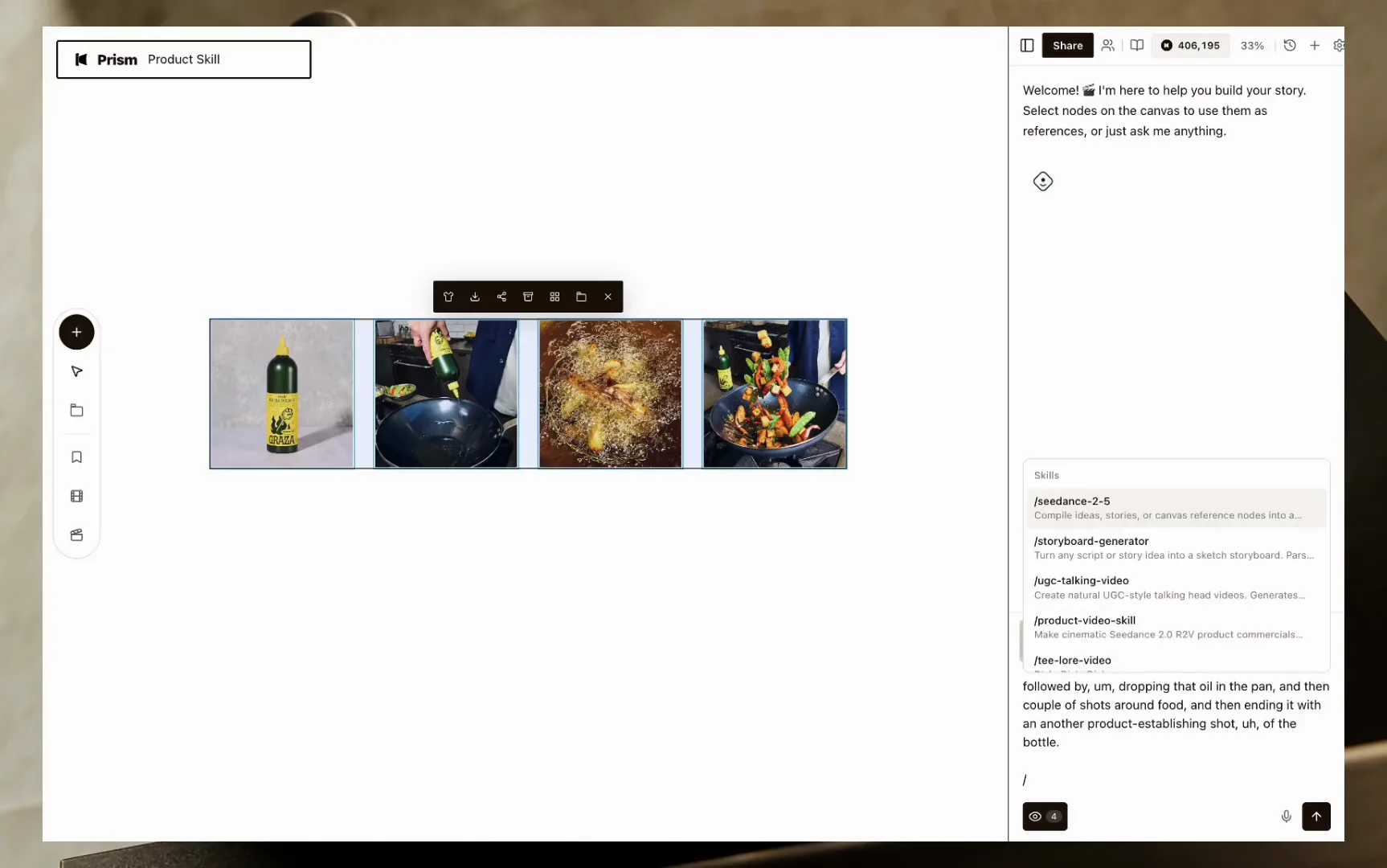
Type / in the composer and the skills menu opens. Choose /product-video-skill. This is the part that does the technical heavy lifting on your behalf: it understands how product photography is usually shot, and it knows which underlying model tends to handle the look and budget you're going for.
Let it build the shot
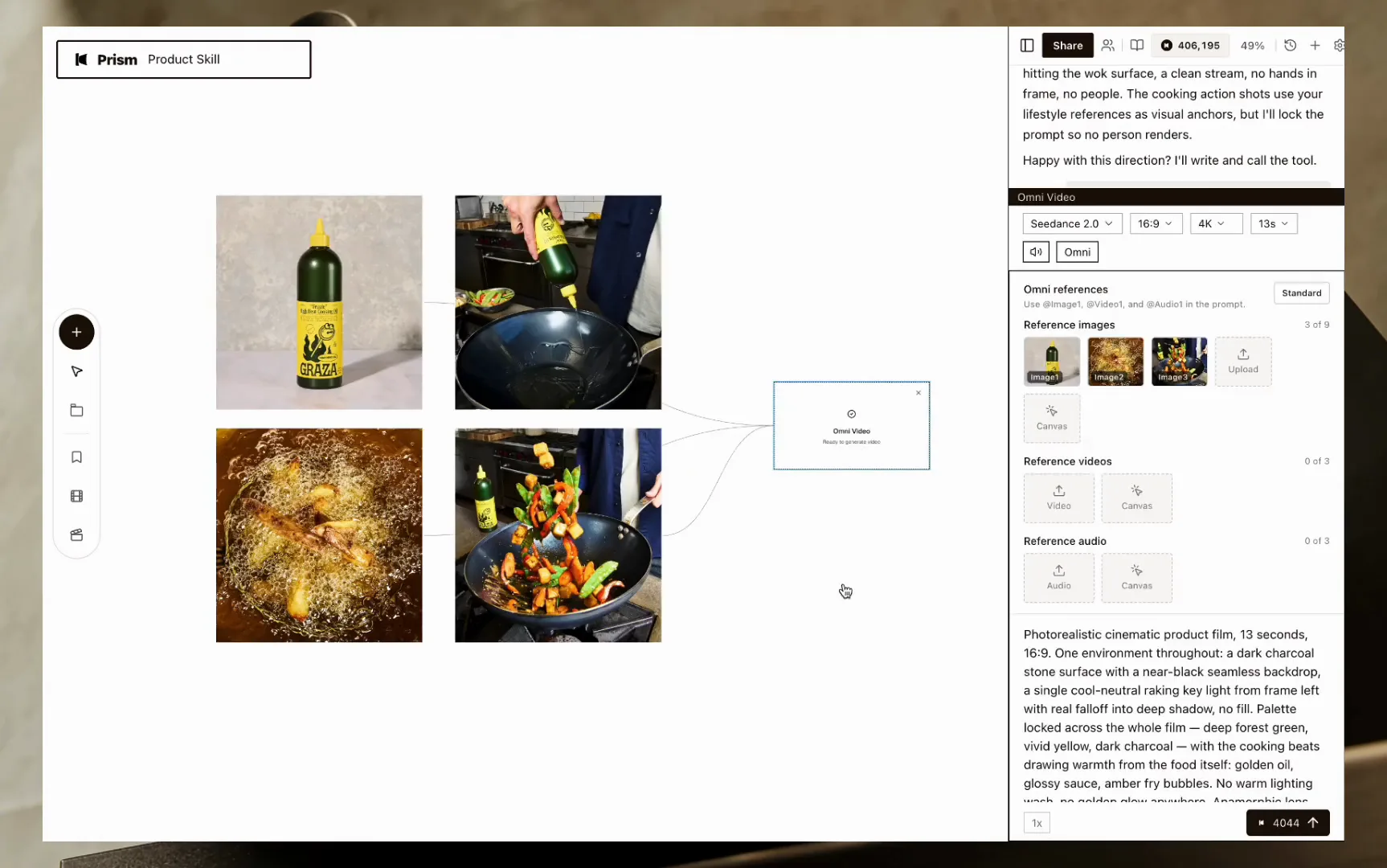
With your direction and the Skill working together, the assistant writes a full prompt and places a placeholder video node on the canvas, already connected to the reference images it thinks the shot needs.
Check what it actually wired in
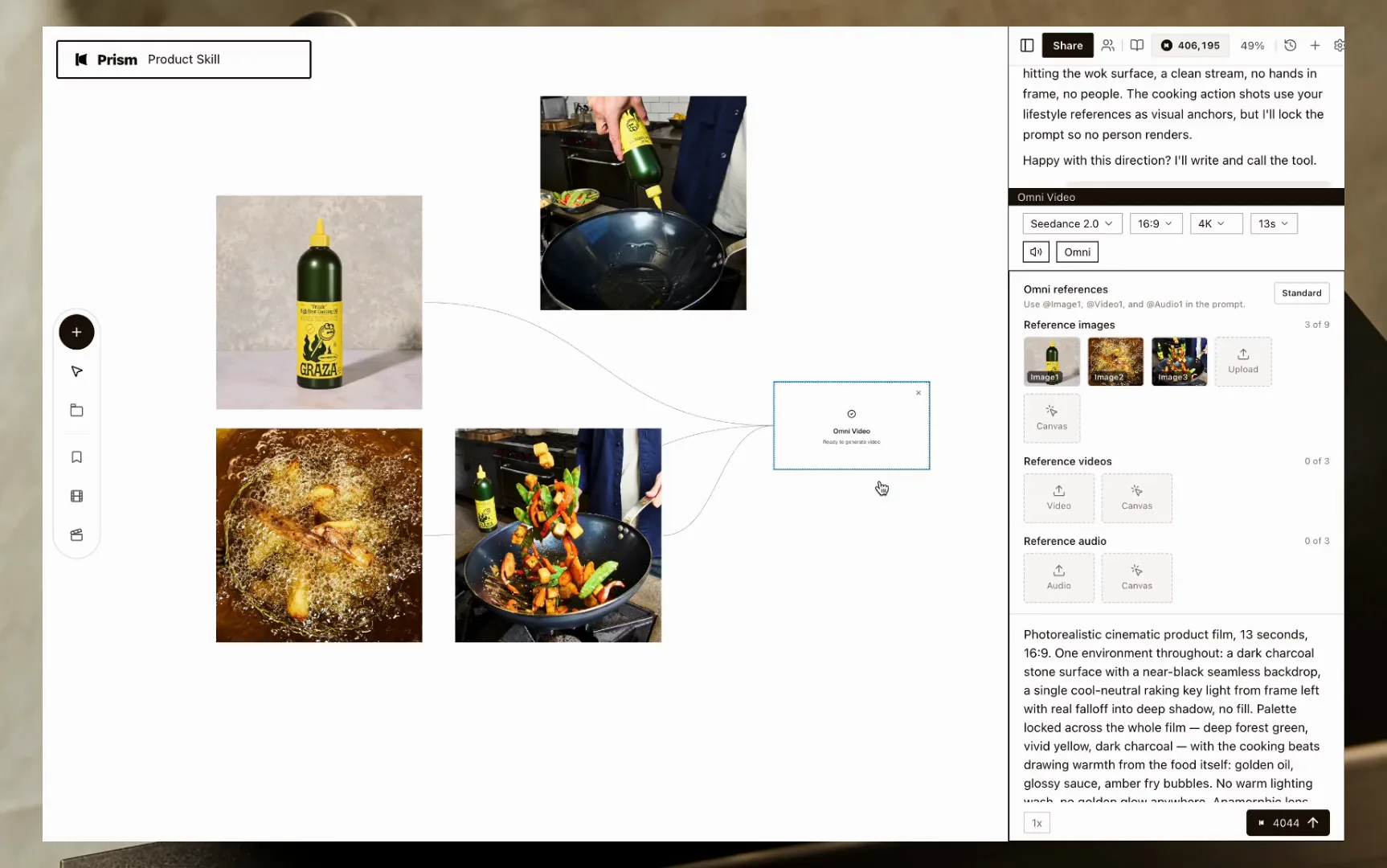
Here's a nice detail worth noticing. The assistant chose which images to use, and it left one out on purpose: a lifestyle pour shot that had hands and a kitchen background in it, which would have crept into a shot meant to stay focused on the product. Because the canvas shows every connection as a visible node, you get to see that decision instead of only discovering it after the fact in a finished clip.
Push back if you disagree
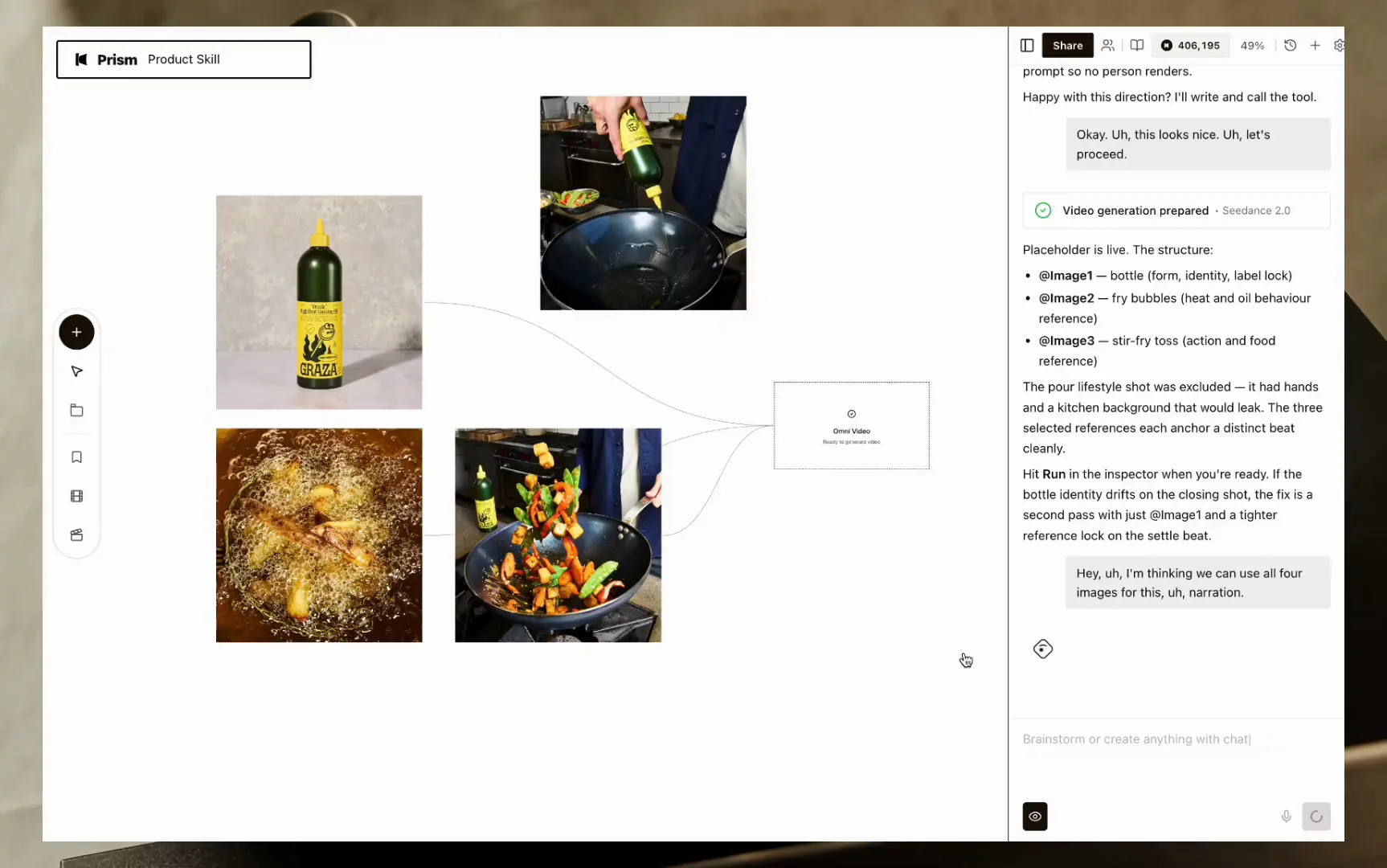
Nothing here is final until you say so. If you'd rather it use all four images, just say that:
Hey, I'm thinking we can use all four images for this narration.
Confirm the new references
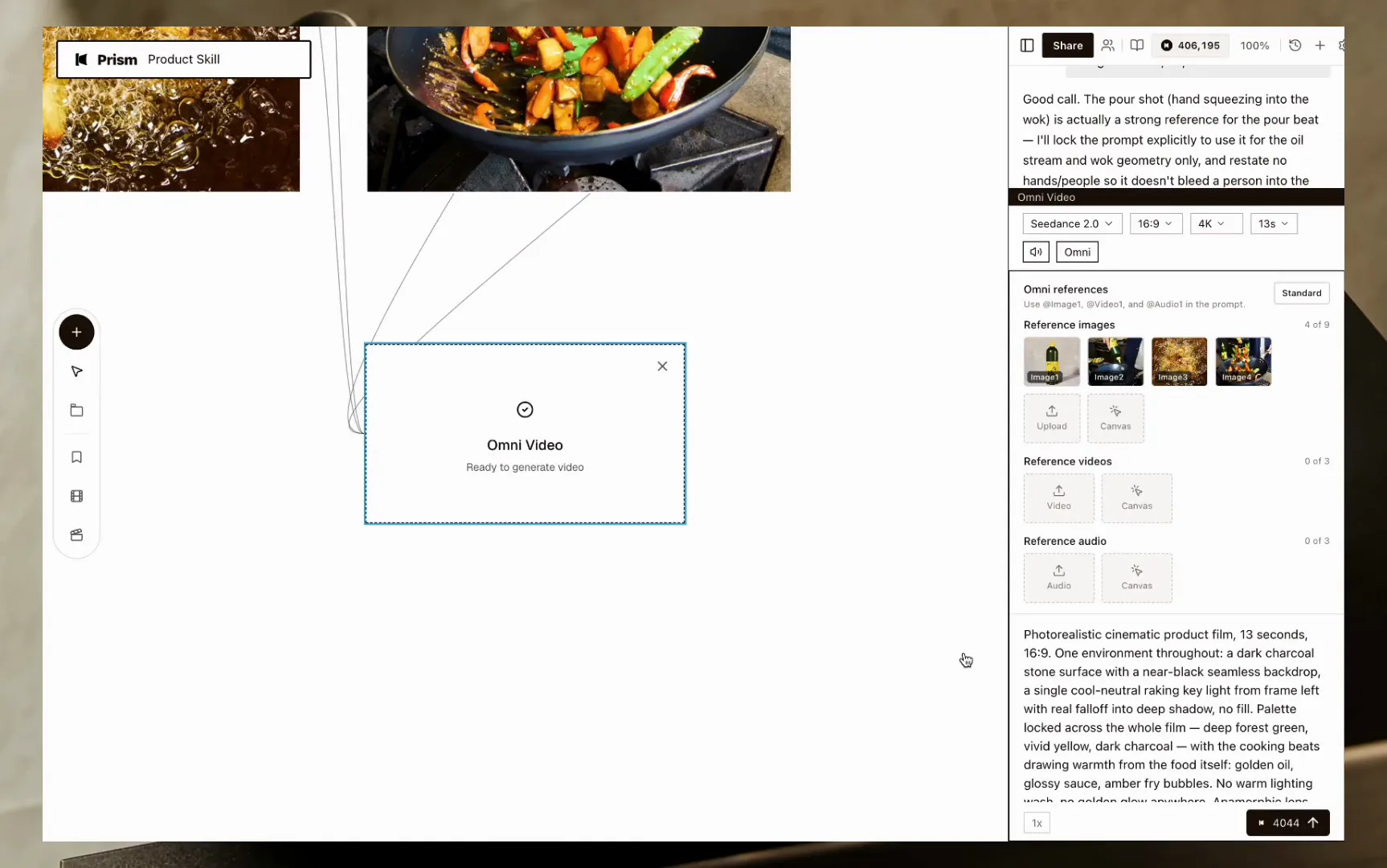
A fresh placeholder builds with all four images wired in. Select the node, and the inspector shows every reference in use along with the full prompt the assistant wrote, which is worth a quick read before you spend a generation on it.
Generate and watch
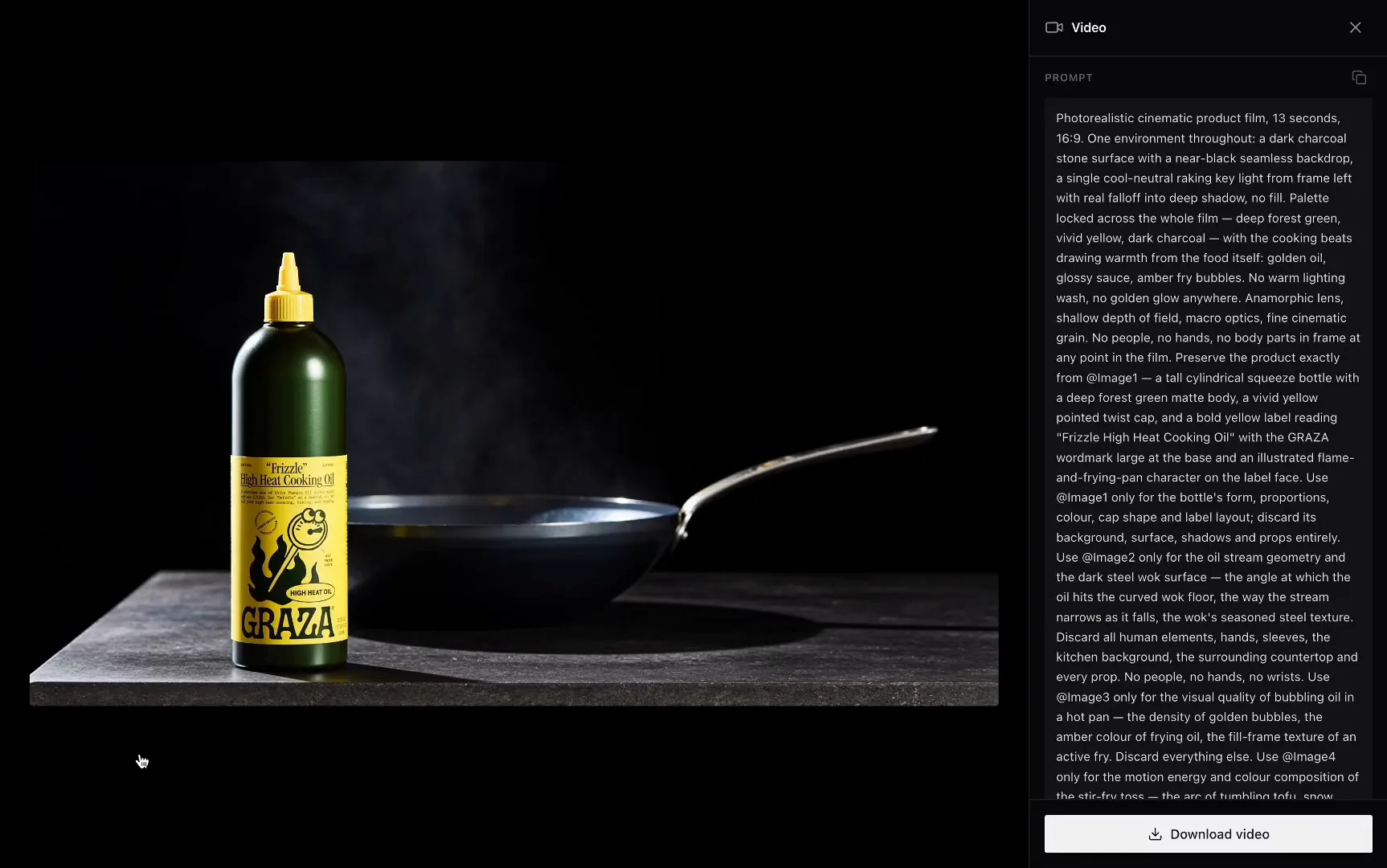
Hit run. Double-click the node to watch it full-size, or just hover to preview it inline. What comes back is a cinematic little product film, built entirely from photos you already had on hand.
Review the prompt and download
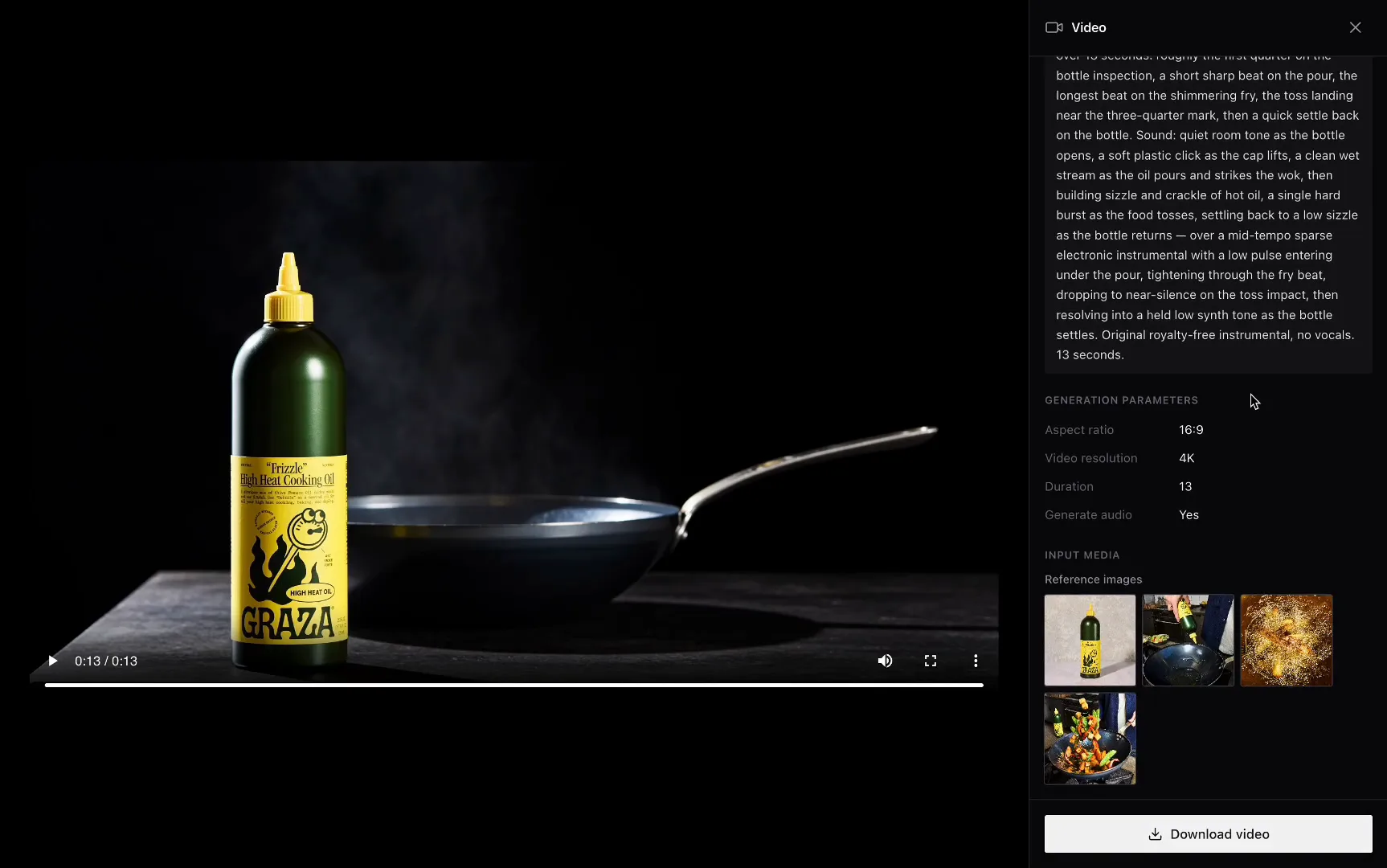
The inspector keeps the full prompt, the video's attributes, and the download button all in one place. If you'd like a variation, just edit the prompt and run it again. The references stay wired up, so you're not starting the setup over from scratch.
The short version
- Upload your existing product photos to the canvas
- Say your shot list out loud, in plain language
- Type
/and chooseproduct-video-skill - Let it build the prompt and the node, then check which references it used
- Push back gently if it left something out you wanted in
- Run, watch, and download at up to 4K, in whatever aspect ratio you need
Can you get 4K and any aspect ratio from the same photos?
Yes, and this is worth explaining properly, because it's easy to gloss over. The Product Video Skill renders at up to 4K, and the same set of reference photos can give you a 16:9 cut for a website hero, a 9:16 cut for a Reel or a Story, or a 1:1 cut for a feed post, all without a separate shoot or a crop that awkwardly slices off part of the product.
This is the detail that quietly decides whether a product video actually gets used or just sits as a nice demo, since a clip that looks fine on a phone can fall apart once it's stretched across a landing page hero.
FAQ
What is the best AI tool for making a product video in 2026?
It's whichever tool can build from photos you already own, skip the reshoot, and hand you a finished film in minutes rather than a blank prompt box. Chromatic does this through a dedicated Product Video Skill, which reads your reference photos, writes the prompt for you, and sends the render to whichever underlying model suits the product and the quality you're after.
Do I need a professional product shoot to make an AI product video?
Not for this workflow. It assumes you already have four or five decent product photos, maybe a hero shot, a detail shot, a lifestyle image, and builds the video from those. No reshoot, no studio booking, no separate photography step needed.
Which AI model is best for product videos?
There isn't one model that's best for every product. Chromatic's Product Video Skill routes each run to Seedance, Kling, or MiniMax H3/Grok depending on the product category and how you'd like to balance quality against credits, so the model fits the brief instead of the brief being forced to fit one model.
Can I get 4K output and different aspect ratios from the same product photos?
Yes. A single run can render at up to 4K, and the same reference photos can give you a 16:9 cut for a website or YouTube, a 9:16 cut for Reels and Stories, and a 1:1 cut for feed posts, all without reshooting or cropping the product awkwardly out of frame.
How long does it actually take to make a product video this way?
The full walkthrough in this post, from four uploaded photos to a finished, downloadable film, takes about four minutes. Most of that time goes into describing the shots you want and reading the prompt, not waiting around for a render.
Where do I start?
Head to chromaticlabs.co and try the Skills library, including /product-video-skill, with the free credits every account starts with. When you're ready to go beyond a handful of runs, pricing lays out what that looks like.